Account Management / HASSCloud User Onboarding
HASSCloud User Onboarding
Use this page to onboard new users into HASSCloud by inviting them to your organization and assigning editor licenses.
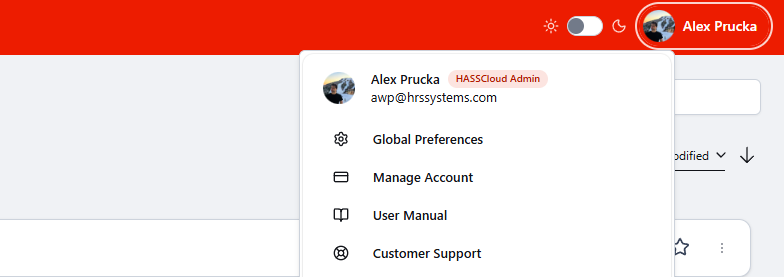
Step 1: Open Manage Account
- Select your user profile button in the top-right corner.
- Select Manage Account.
Step 2: Invite Users to Your Organization
- Select Organization.
- Select Members.
- Select Invite.
- Enter one or more member email addresses you want to invite to your organization.
- Select Send invitations.
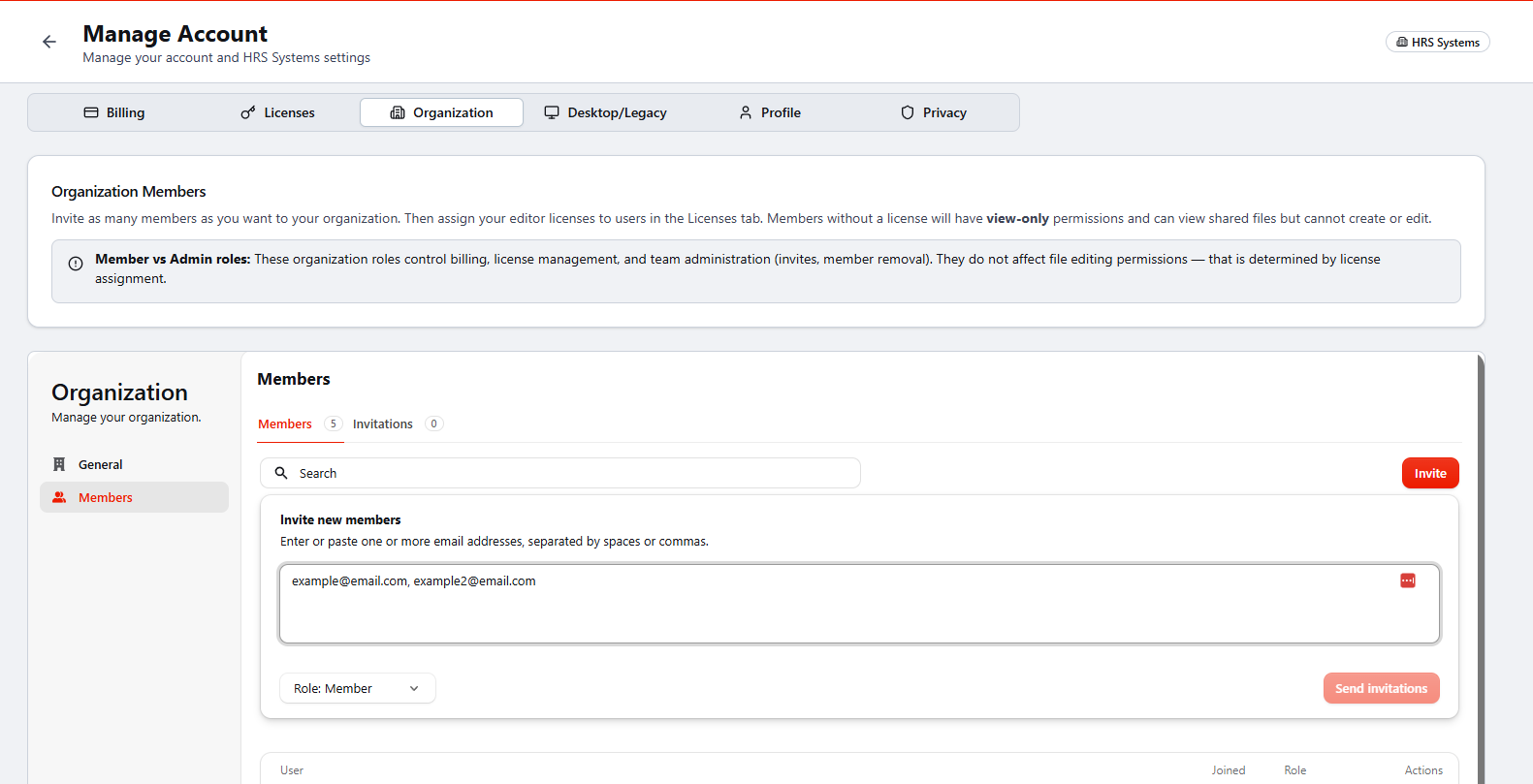
The invited user receives an email with a sign-in link. After they sign in to HASSCloud at least once, you can assign an editor license to that user.
Until an editor license is assigned, the user remains a free View-Only user by default.
Step 3: Assign an Editing License
- Select the Licenses tab.
- In the team members list, find the user and select Assign.
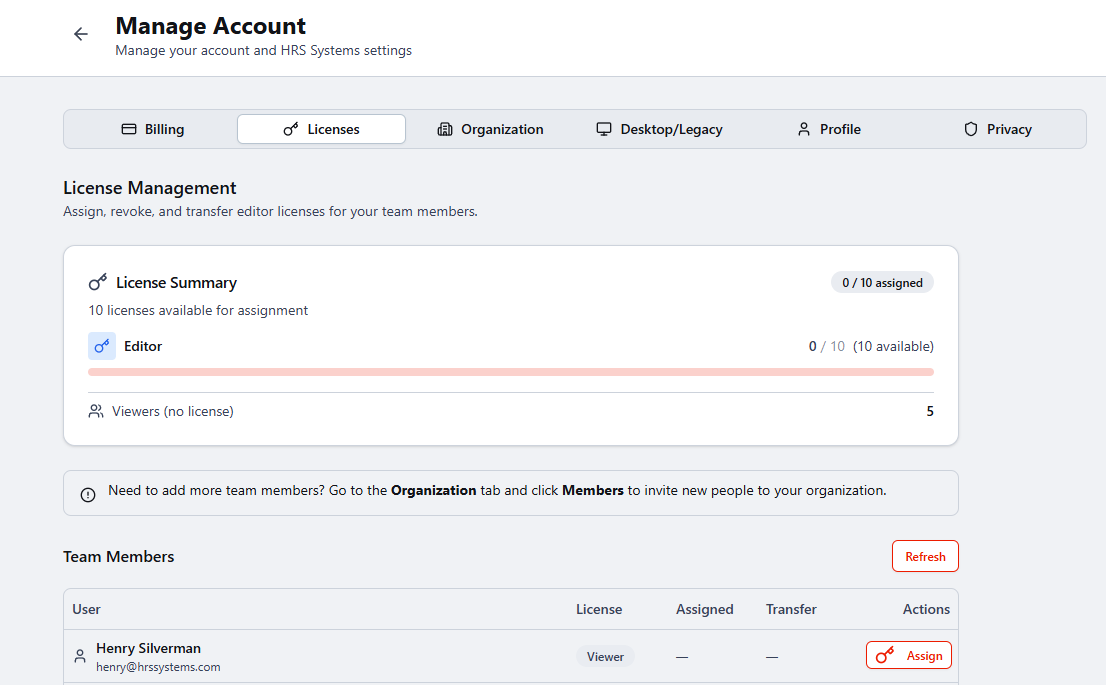
Once a license is assigned, the user should have full access to HASSCloud. If they do not immediately see edit access or the ability to create files, have them refresh their browser window.