Results & Reports
Results explains how to view, validate, and refresh calculation outputs before moving to final reporting.
Results Overview
Results Overview
Access Results
Open Results from the Toolbar to view calculation outputs.Auto-Open
After a successful run, the Results Dashboard opens automatically from Calculations.Edit While Viewing
You can keep the Results Dashboard open while continuing edits in Data Input Tables.Refresh Results
After an edit, select Recalculate in the top-left of the Results Dashboard to update outputs.Multiple Runs
You can store and compare multiple runs based on different calculation criteria or different system versions.Results Dashboard
Results Dashboard
Hydraulic Graph
Visualizes the relationship between system demand and available supply for the selected run.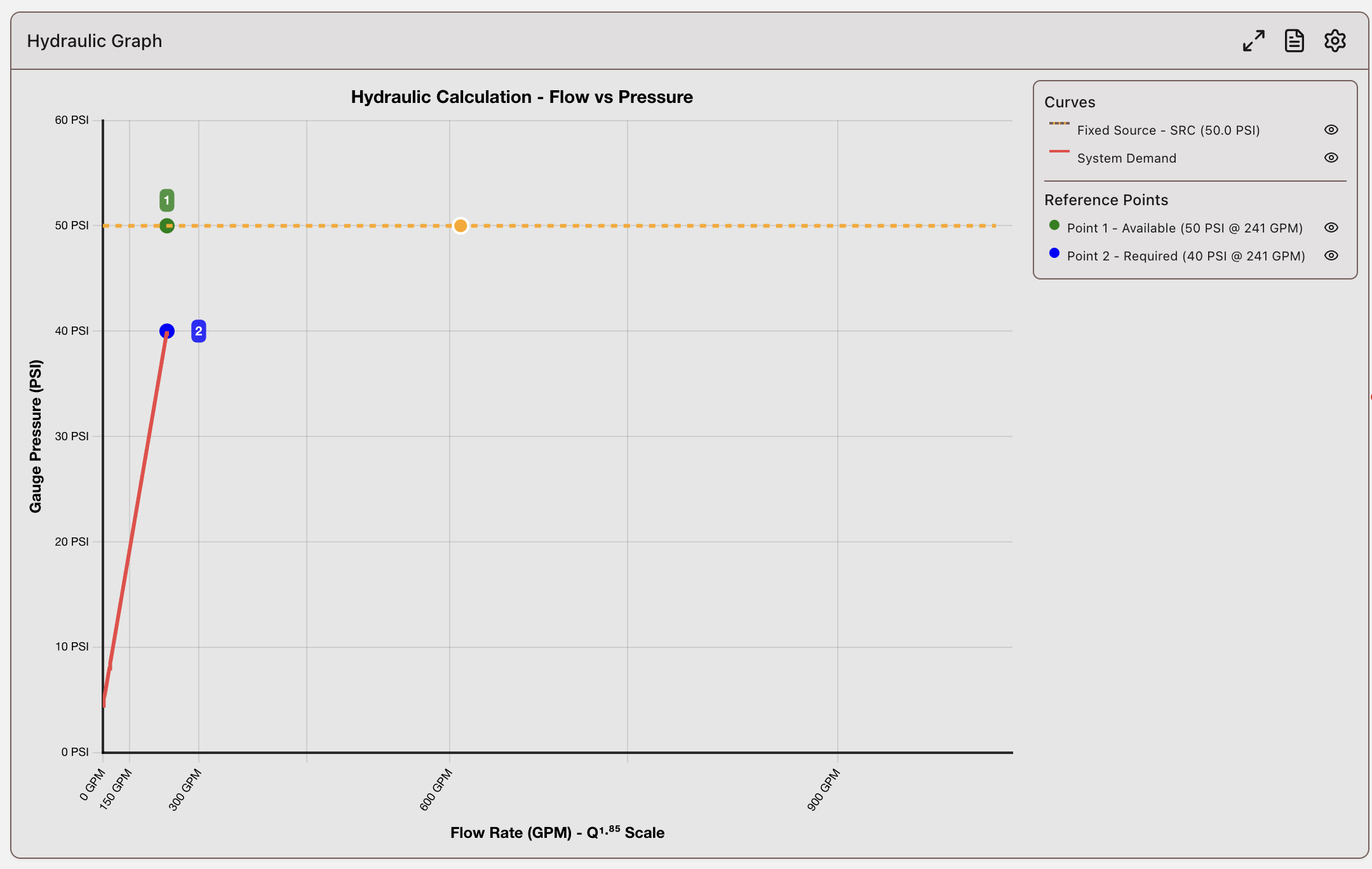
Pressure Gauge
Displays pressure-focused values for quick validation of system pressure behavior.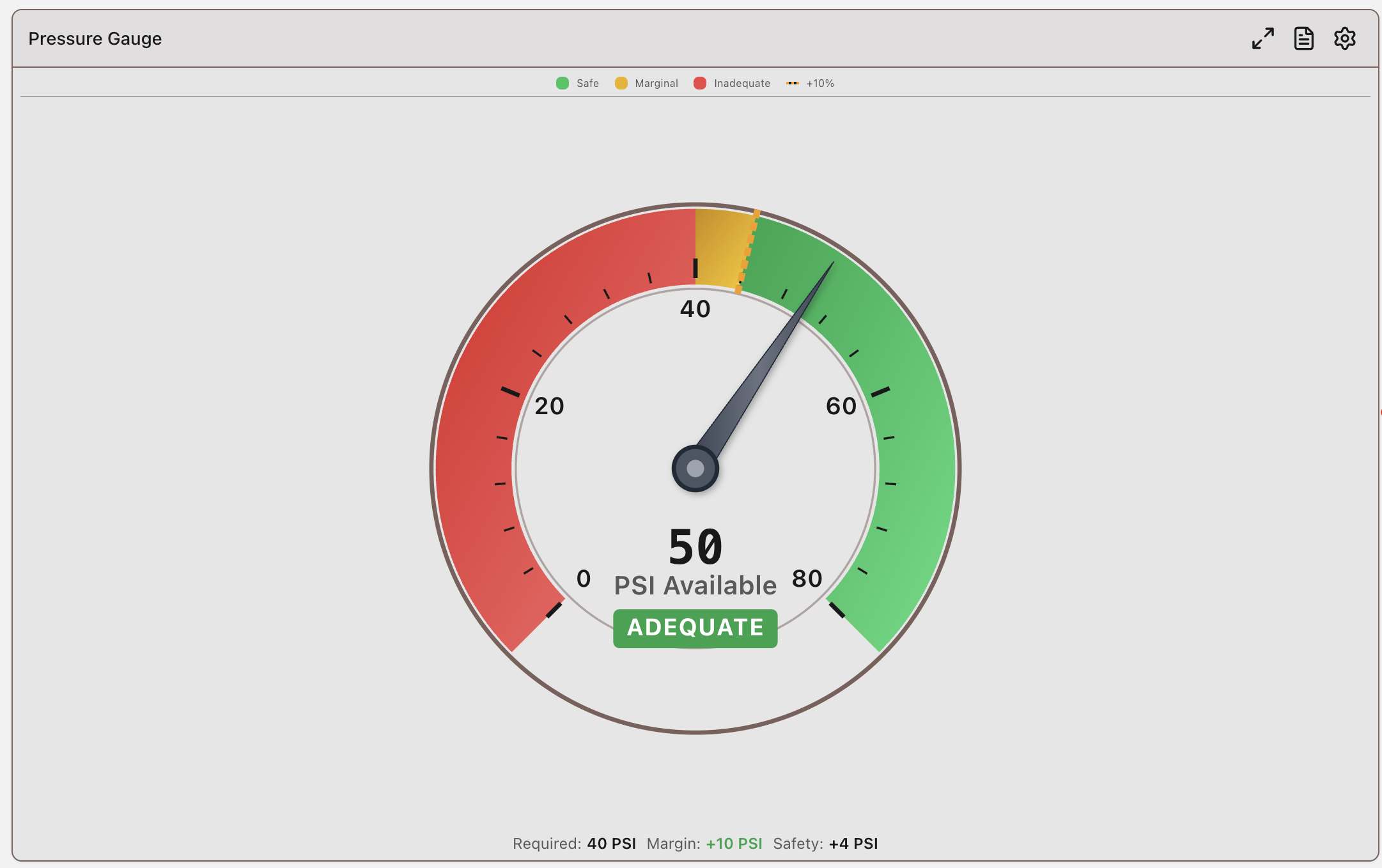
System Performance
Summarizes key performance values for the calculated system.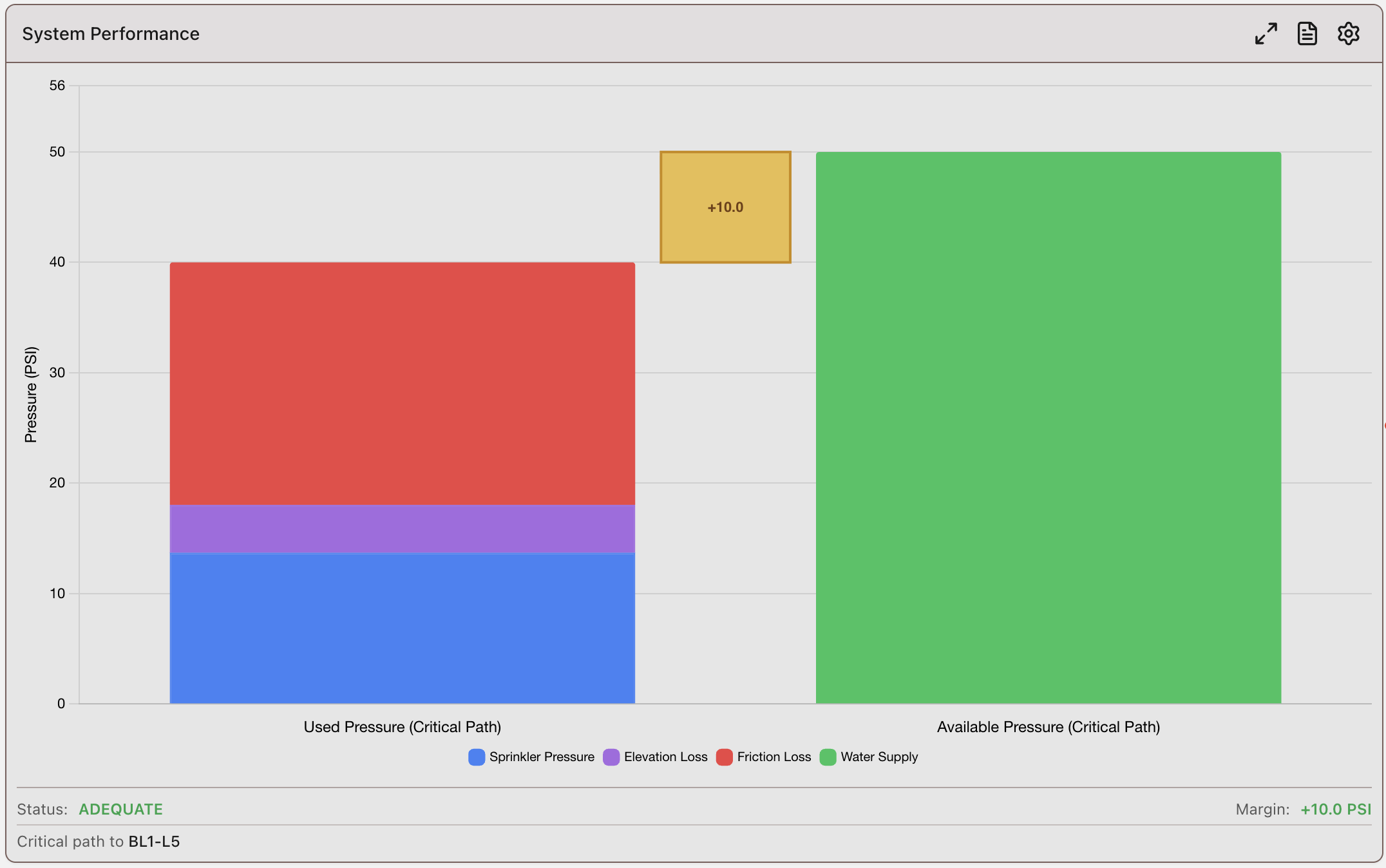
Friction Loss Analysis
Highlights where friction losses are concentrated across the model.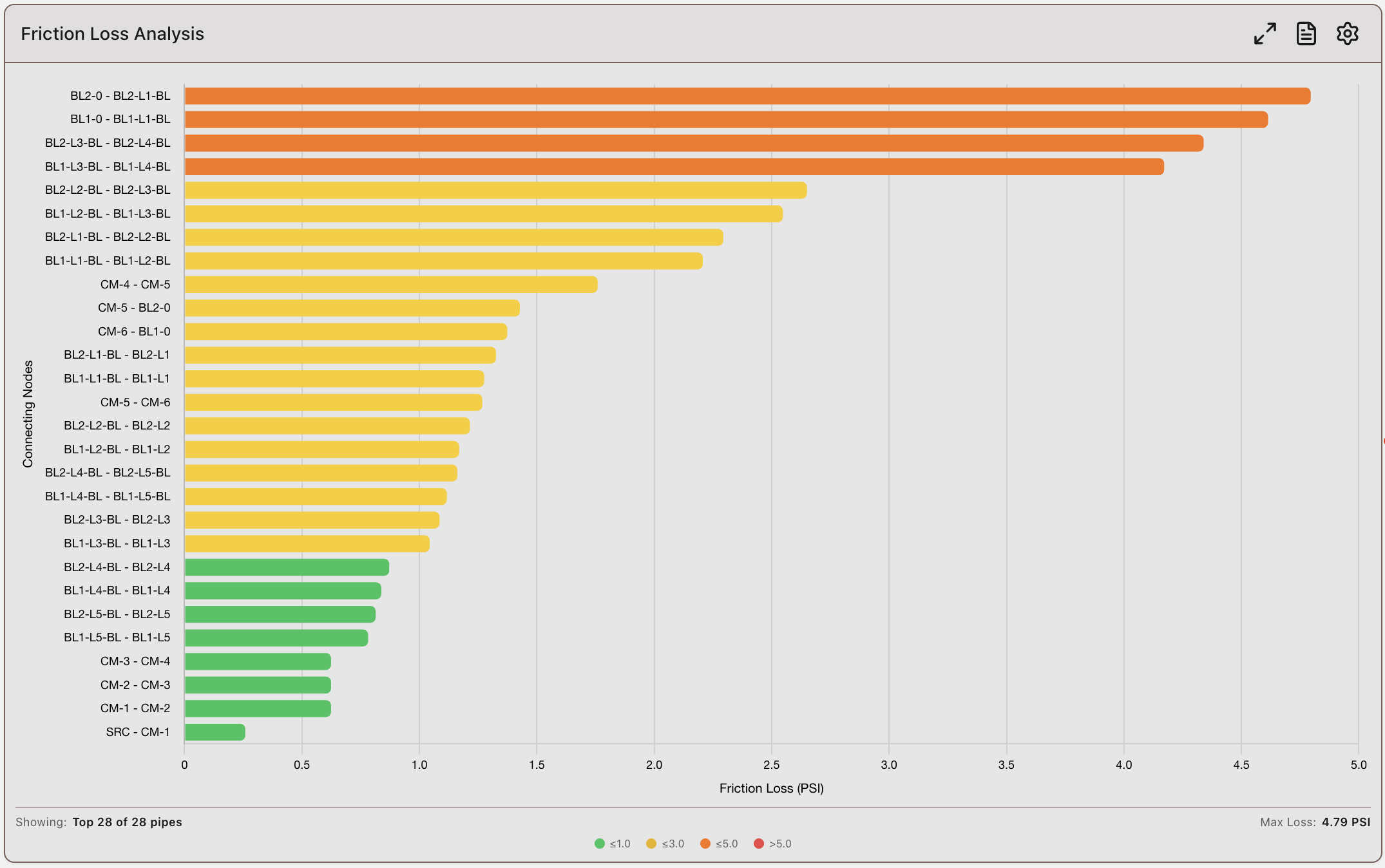
End Head Conditions
Shows end-head condition checks for the selected criteria.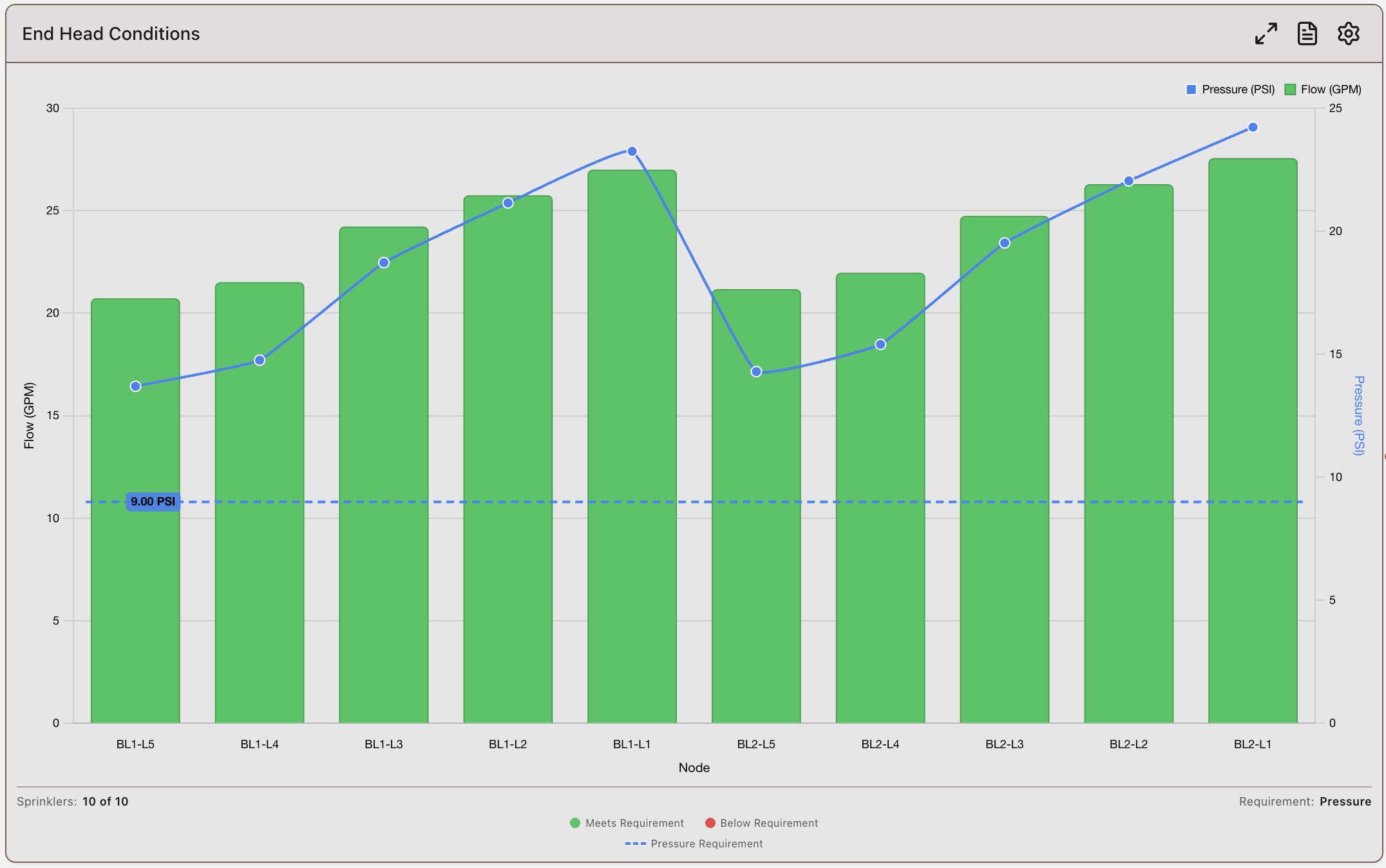
Isometric Drawing
Displays a 2D system drawing view aligned to the active calculation.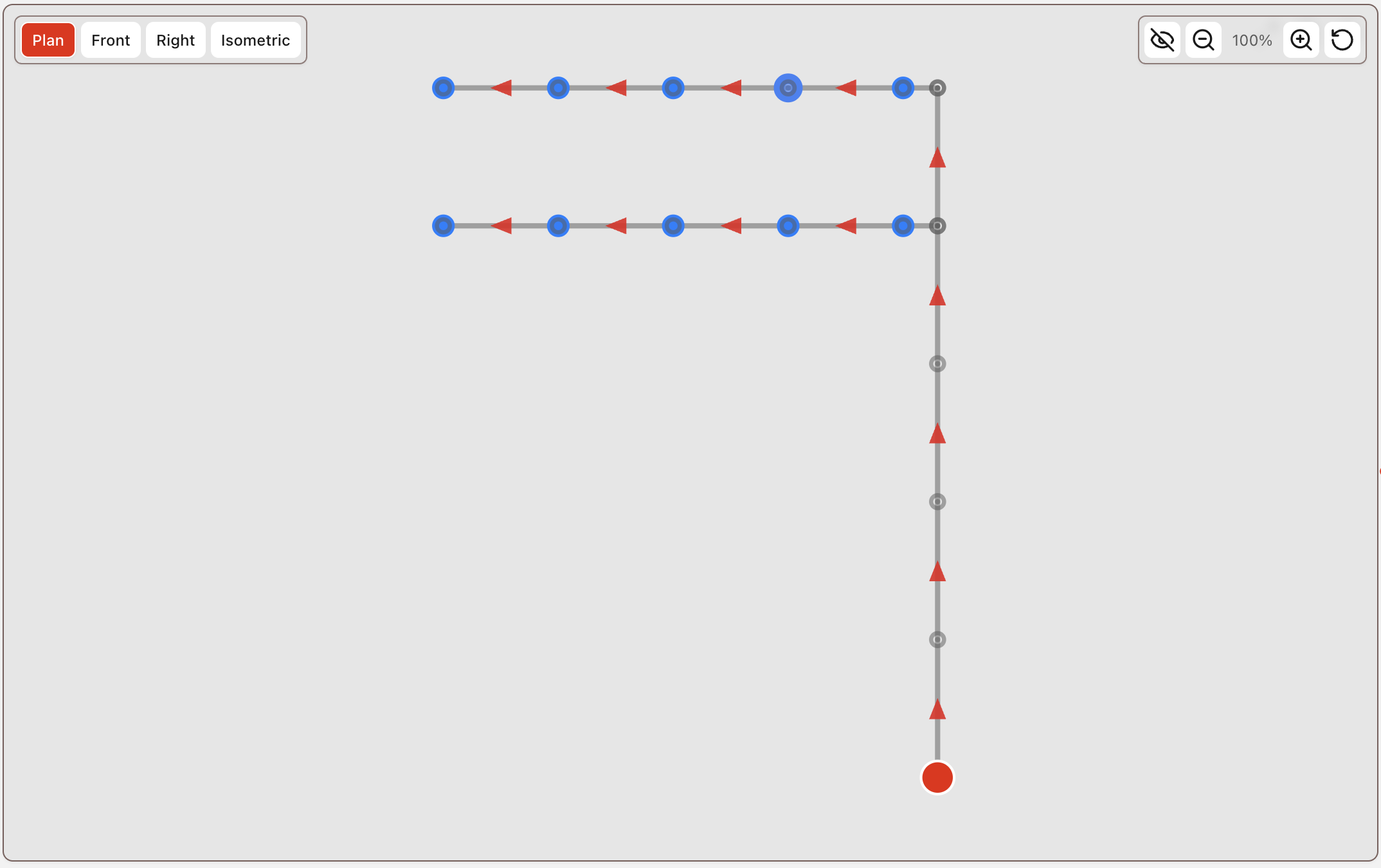
Recalculating Results
Recalculating Results
Make Edits
With Results open, you can still edit the system in Data Input Tables.Recalculate
After edits are complete, select Recalculate in the Results Dashboard to refresh outputs.Status Icons
Calculation status is shown by the icon next to the calculation name in the results panel.Current Status
Green dot icon indicates the displayed results match the current system build in the data tables.
Stale Status
Yellow warning icon indicates the displayed results are stale and no longer match the current system build.
To refresh stale results, select Recalculate. This button appears when a result is stale.
HASS Report
HASS Report
Open Report
Open the HASS Report by toggling the Report button in the Results Dashboard.Report Format
The report follows NFPA-13 formatting standards.Print or Export
To print or export a PDF, select the printer icon in the dashboard toolbar.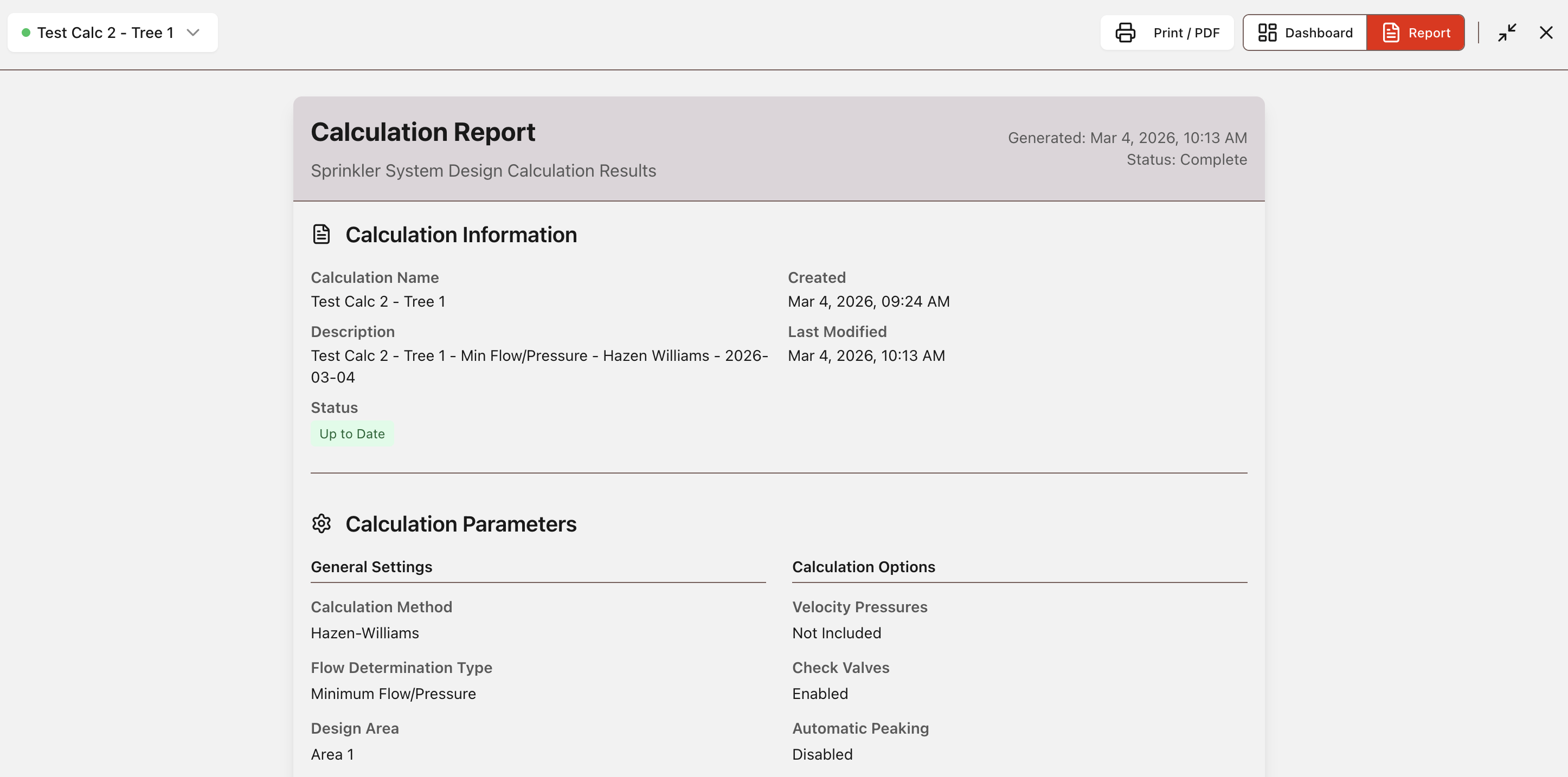
For error or warning follow-up before final issue, review Calculation Errors & Warnings.